Quick Answer
To install WordPress, log in to your hosting control panel, open the one-click installer (such as Softaculous), select WordPress, choose your domain, set an admin username and password, and click Install. The whole job takes under five minutes. If your host has no installer, download WordPress from wordpress.org, create a database, upload the files over SFTP, edit wp-config.php, and run the installer at yoursite.com/wp-admin/install.php.
WordPress is a free, open-source content management system, and there are three ways to install it. Most people should use their host’s one-click installer. Install WordPress manually only when your host offers no installer or you need control over the database and file locations. Install locally when you are building a site before it goes live.
Three routes cover every situation:
- One-click installer through your hosting control panel
- Manual install via SFTP
- Local install on your own computer
Table of Contents
WordPress.org vs WordPress.com
Settle this before anything else, because the two are different products and only one needs installing.
WordPress.org is the free, open-source software. You download it, you supply your own hosting and domain, and you control everything, including plugins, themes and code.
WordPress.com is a hosted service run by Automattic. Nothing is installed. You sign up for an account, and the plan you choose determines what you can do.
This guide covers WordPress.org. If you want full plugin access, custom code or commercial flexibility, this is the version you need. Not sure what an existing site runs on? Here is how to tell what platform a website is built on.
What Your Hosting Needs to Run WordPress
WordPress.org publishes its own requirements, and the recommended baseline is:
- PHP 8.3 or greater
- MariaDB 10.11 or greater, or MySQL 8.0 or greater
- Apache with the mod_rewrite module, or Nginx
- HTTPS support
WordPress still runs on PHP 7.4 and MySQL 5.5.5, but both have reached end of life and no longer receive security patches. Treat them as a reason to change host rather than as an acceptable baseline.
Check your PHP version in your hosting control panel before starting. Some hosts set new accounts to an older version than the newest one they support.
Route 1: WordPress One-Click Install
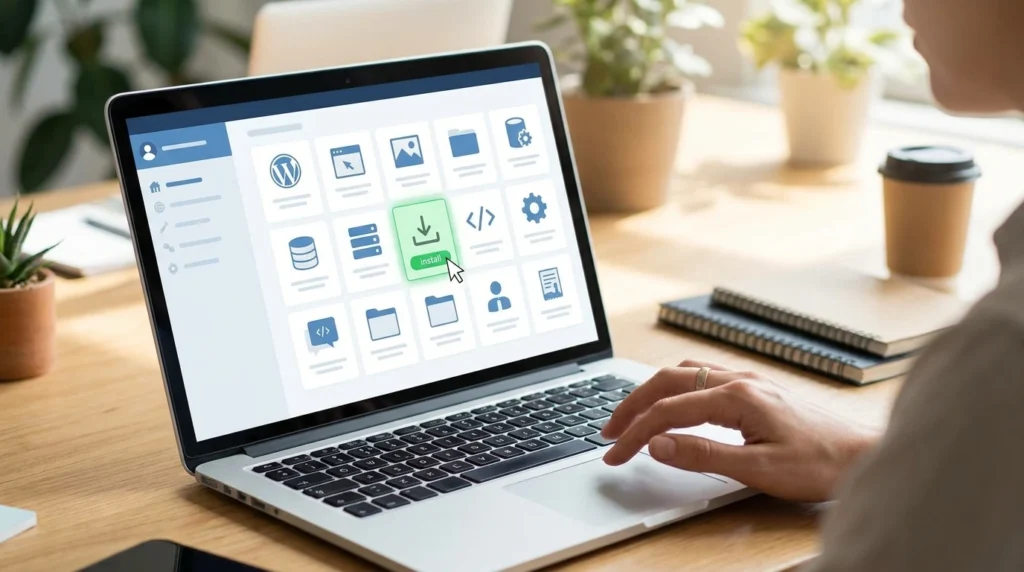
Most shared hosting includes an installer such as Softaculous, or the host’s own equivalent.
- Log in to your hosting control panel.
- Open the installer, usually listed under Software or Website.
- Select WordPress and choose the domain or subdomain.
- Leave the directory field empty to install at the domain root.
- Set the site title, admin username, password and email.
- Run the install and wait for the confirmation.
Two settings matter at this stage:
- Do not use “admin” as the username. It is the first value automated login attacks try.
- Install at the root unless you specifically want a subdirectory. Entering a folder name produces an address like yoursite.com/wordpress/, which is rarely what people want.
Managed WordPress hosting skips this step, since WordPress arrives pre-installed on the account.
Route 2: Install WordPress Manually
Use this route when no installer exists, or when you need control over file placement.
Step 1: Download and prepare
- Download the latest release from wordpress.org and unzip it.
- Decide whether the files go in the root of public_html or in a subdirectory.
Step 2: Create the database
- Open phpMyAdmin or your panel’s database tool.
- Create a new database and note the exact name.
- Create a database user with a strong password.
- Grant that user all privileges on the database.
- Record the database host, which is usually localhost but differs on some hosts.
Step 3: Upload the files
- Connect over SFTP, or use the panel’s file manager.
- Upload the contents of the wordpress folder, not the folder itself, unless you want a subdirectory install.
Step 4: Set up wp-config.php
- Rename wp-config-sample.php to wp-config.php.
- Enter the database name, username, password and host.
- Replace the placeholder keys and salts with fresh values from the WordPress secret-key service.
- Change the table prefix from wp_ to something else if you prefer.
Step 5: Run the installer
- Visit yoursite.com/wp-admin/install.php.
- Enter the site title, admin username, password and email.
- Complete the install and log in.
Route 3: Local WordPress Install
Install locally when you are developing or testing rather than publishing.
- LocalWP is the simplest option and handles the server stack for you.
- XAMPP or MAMP suit people who want a general-purpose local server.
- Docker suits developers matching a production environment.
A local site is not reachable from the internet. Moving it live later requires a migration plugin or a manual database and file transfer.
What to Do After Installing WordPress
Five tasks before the site goes public:
- Install an SSL certificate and confirm the site loads over HTTPS.
- Open Settings, then Permalinks, and choose Post name. Fresh installs usually default to Day and name, which puts dates in every URL.
- Delete unused themes and plugins, which are an unnecessary attack surface.
- Confirm automatic updates are on. Minor and security releases update by default, and you can enable major releases too.
- Set up backups, either through your host or a plugin.
Check Settings, then Reading, to confirm “Discourage search engines from indexing this site” is unticked. Installers sometimes enable that option and it is easy to forget.
Once the site is live, plan your structure early. You can assign a WordPress post to multiple categories, and a clean layout is the base of SEO website design. For the next steps, follow our plan on how to improve SEO for a small website.
Would you rather hand the build to a team? Halal Outreach’s web development services cover installation, design and launch.
Common WordPress Install Errors
Error establishing a database connection. The credentials in wp-config.php do not match the database. Check the name, user, password and host individually rather than retyping all four.
White screen after install. Usually a PHP version mismatch or a memory limit. Check the PHP version first and raise the memory limit in your panel if needed. If the page still looks broken after the fix, clear your WordPress cache.
Install page will not load. Files may be in the wrong directory. Confirm that index.php sits at the level your domain points to.
Permission errors uploading files. Directories should generally be 755 and files 644. Never set anything to 777.
Need help with SEO, ads, or a new website?
Get a Free Consultation →Frequently Asked Questions
How long does it take to install WordPress?
A one-click install completes in two to five minutes. A manual install typically takes fifteen to thirty minutes, depending on your familiarity with SFTP and database tools.
Do you need a domain before installing WordPress?
You need a domain and hosting for a live site. A local install needs neither, since it runs on your own computer and is not publicly reachable.
Is WordPress free to install?
The software is free. Costs come from hosting, a domain name, and any premium themes or plugins you choose to buy.
Can you move a local WordPress install to a live server?
Yes, using a migration plugin or by transferring the files and exporting the database manually. Site URLs stored in the database must be updated during the move.
Which PHP version should you choose for WordPress?
WordPress recommends PHP 8.3 or greater. Older versions back to PHP 7.4 still run the software but no longer receive security patches.